✨ AI tools · your own OpenAI key
AI assistant and translation in every plan, scanner from 5 Sites ($99)

Losing time on texts and retyping business cards? AI drafts, you check.

The AI assistant writes a bio, a tagline and a follow-up message, the paper business card scanner reads the details from a photo, and ✨ Auto-translate translates the card content. All three run on your company's own OpenAI key, and OpenAI bills that usage directly to you.

Back from a trade fair with a stack of cards and no messages sent? The scanner and the assistant turn the work into a check.

Retyping names, emails and phone numbers and writing thank-you notes takes time exactly when you should get in touch, while people still remember you.

❌ Everything by hand

You type every business card into your phone or a spreadsheet and write every message from scratch.

✓ A draft in seconds

The scanner fills in the form with the details from the photo, and the assistant drafts the message. You review it, correct it and only then save or send.

What exactly do the AI tools do? They write, read and translate, and you decide.

No tool changes anything on its own: you copy the assistant's text, you confirm a scanned contact, and a translation is saved only when you save the card.

✍️

AI assistant

Three tools: Card bio, Headline (tagline) and Follow-up message, for email or for SMS and WhatsApp. You choose the tone, length and language, and the name, position and company are filled in from your latest card.

📷

Paper business card scanner

You photograph a business card with your phone, the scanner extracts the name, company, position, email addresses, phone numbers, website and address, and you review the form and save the contact. The photo is not stored on the site.

🌐

Automatic card translation

✨ Auto-translate translates a card field from the Srpski tab into the other 10 languages. You review and correct the translations tab by tab before saving the card.

How do you turn on the AI tools? One OpenAI key for the whole site.

Only the Administrator enters the key, once; employees neither see it nor enter it.

1

Create a key

On platform.openai.com, signed in with the company's OpenAI account, create an API key and copy it right away. Set up billing on the account.

2

Enter the key

In QR vCard Pro → Settings → Lead Capture, section 🌐 Multilingual support, paste the key into the OpenAI API Key field, check it with Check key and save the changes.

3

Use the tools

The AI assistant is in the AI assistant menu, the scanner on the portal under All contacts → 📷 Scan, and ✨ Auto-translate next to the card's translatable fields.

At a glance

Plan
All plans: the AI assistant (bio, tagline, follow-up message) and ✨ Auto-translate. 5 Sites ($99): the paper business card scanner, 20 saved scans per user per month. Unlimited and Agency: the scanner with no limit.
Where to find it
AI assistant: QR vCard Pro → AI assistant, on the portal AI assistant. Scanner: on the portal All contacts → 📷 Scan (wp-admin has no scanner). Translation: the ✨ Auto-translate button next to the card's translatable fields. Key: QR vCard Pro → Settings → Lead Capture, the OpenAI API Key field.
Limits
One user can send at most 20 requests per minute to the assistant and to translation. The scanner quota runs per calendar month (UTC). The scanner does not detect duplicates, and everyone scans only to their own cards. ✨ Auto-translate translates only from the Srpski tab.
What you need
A company OpenAI API key with billing set up on the OpenAI account. The Administrator enters the key once for the whole site.

What do the AI tools give you? Less typing, and you stay in control.

The plugin charges nothing extra for the AI tools; OpenAI bills usage to the key owner, at its own prices.

✓
The assistant in every plan: bio, tagline and follow-up message, on the free Personal plan too
✓
Text in 11 languages: Serbian (in Latin script), English, German, French, Spanish, Italian, Russian, Croatian, Slovenian, Japanese and Chinese
✓
A scanner for the road: it runs on the portal in a phone browser and accepts JPG, PNG, WebP, HEIC and HEIF files of up to 4 MB
✓
The quota counts only saved contacts: 20 per user per month on 5 Sites, no limit on Unlimited and Agency
✓
Scanned contacts go where all contacts go: into Contacts, with a notification to the card owner, and to webhooks and Odoo if you use them
✓
One switch for the whole team: the Administrator can turn the AI assistant off for all portal users
The author's real card

Open a real card and switch its language with the 🌐 picker

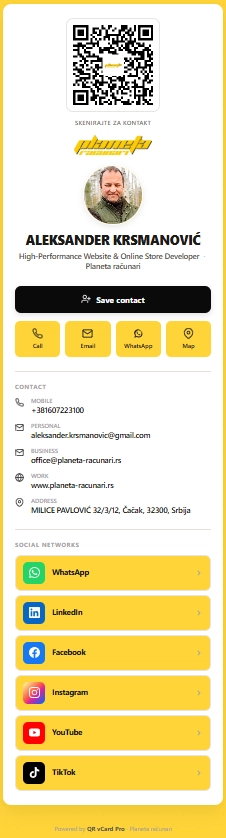
QR vCard Pro is built and maintained by Aleksander Krsmanović (Planeta računari), and this is his own card, made with the same plugin. Open it on your phone: save the contact, send the card on with Share details, or switch the language in the 🌐 picker.

planeta-racunari.rs/q/FejWtK

Frequently asked questions

Which plan do I need for the AI tools?

The AI assistant and ✨ Auto-translate work in every plan, including the free Personal. The paper business card scanner works from the 5 Sites plan ($99), with 20 saved scans per user per month; on Unlimited and Agency the scanner has no limit.

How much does OpenAI usage cost?

The plugin charges nothing extra. OpenAI bills every call to the key owner, under its own prices and terms, including when an employee uses a tool, so billing must be set up on the OpenAI account. The amount depends on OpenAI's prices and on how much you use the tools.

Do I pay for a scan I do not save?

Yes. The quota counts only saved contacts, but OpenAI bills every photo: if you photograph the same card three times, you pay for three runs. Before you take the photo, make sure the lighting is good and the card fills the frame.

Where does the data I type or photograph go?

Text from the assistant's fields, text for translation and the business card photo are sent to OpenAI through your key. The photo is not stored on the site, and cards and contacts stay in your own WordPress database. Do not enter confidential client information in the meeting description.

Does the AI change my card on its own?

No. The assistant's text is never inserted anywhere automatically: you copy it with the Copy button and paste it where you want. A translation is saved only when you save the card, and a scanned contact only when you tap Confirm and save contact. Always read the text before you publish or send it.

Do scanned contacts get an automatic thank-you message?

No. Automatic follow-up is never sent to contacts from the scanner, because the person did not leave their details themselves. Get in touch personally; the Follow-up message tool can draft the message for you.

Does the scanner detect duplicates?

No. If you save the same business card twice, you get two identical contacts and use two scans from the quota. Before scanning a larger batch, search Contacts by name or email.

Can I turn the AI tools off for employees?

You turn the AI assistant off with the Show the AI assistant to all portal users (managers and employees) switch; its tools then stop working for everyone. If you delete the OpenAI key, the assistant, automatic translation and the scanner all stop working.
Want less typing after every meeting? Connect an OpenAI key and try the assistant.

The AI assistant and automatic translation work in every plan, and the paper business card scanner from the 5 Sites plan ($99).

See pricing
The license is lifetime and paid once. Updates are included for 12 months from purchase; after that, renewing updates is optional, and the plugin and every feature of your plan keep working without renewal. 14-day money-back guarantee: send your request to office@planeta-racunari.rs.